Import your Zotero or Mendeley library (BibTeX or RIS)
Export a .bib or .ris file, import it in one step, and understand what 'held reference' means, plus how to make imported papers citable with full text.
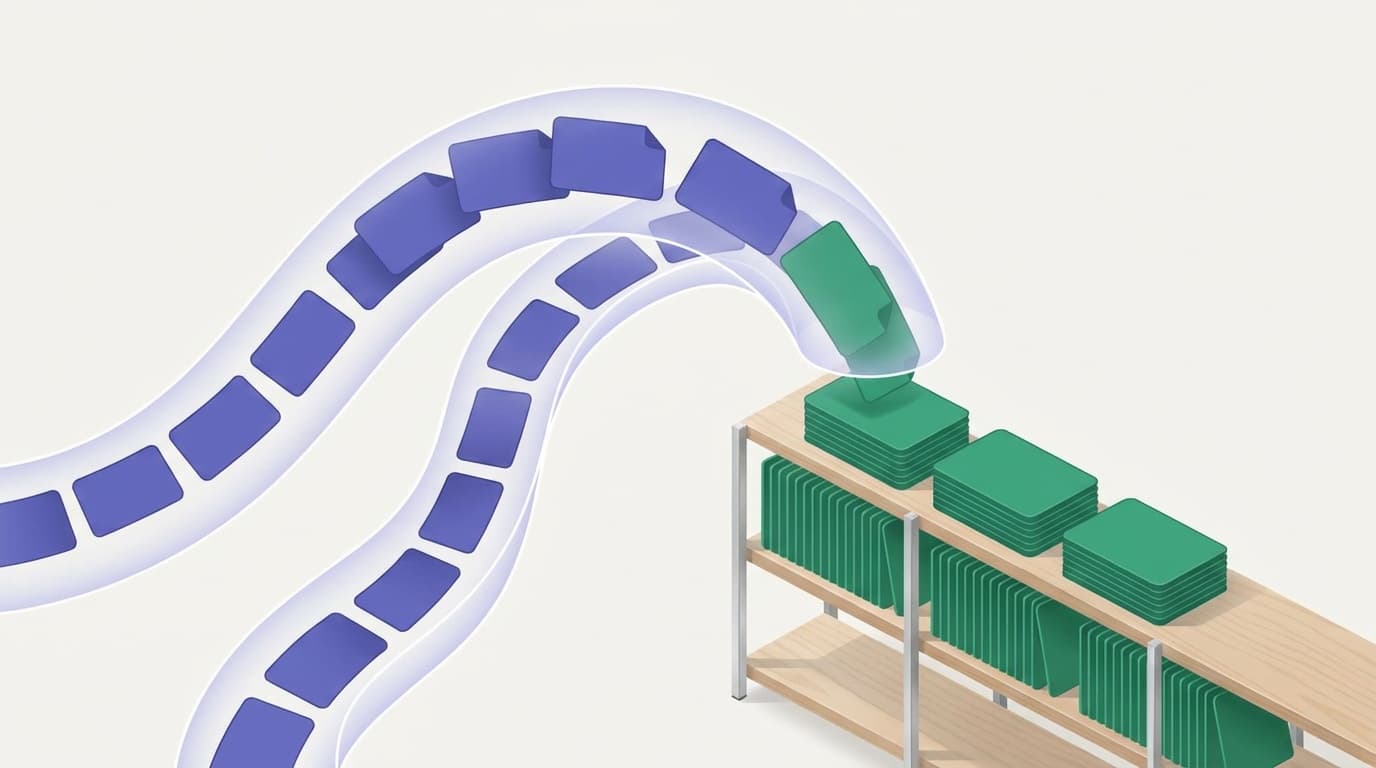
If you already manage references in Zotero, Mendeley, or any tool that exports BibTeX, you don't start over in CiteDash AI. You migrate your whole reference library in one step. The Thesis Library imports your .bib file and preserves your citation keys for the round trip back out.
1. Export a .bib from your current tool
In Zotero: select a collection → right-click → Export Collection → format BibTeX (leave the character encoding on Unicode UTF-8, or accented author names arrive as LaTeX escapes). RIS works too. In Mendeley: select papers → File → Export. Entries with a DOI import most reliably. CiteDash resolves each entry against the scholarly record, so a clean DOI beats a hand-typed title. Prefer BibTeX when you can: it is the only format that carries your citation keys, so a later export round-trips your existing \cite{} references.
2. Import into the Thesis Library
In your project's Library, choose Import .bib and select the file. The import runs in the background. Each entry is resolved against the corpus (by DOI or metadata match) and appears as it lands. Large libraries are fine; the list fills progressively and you can leave the page while it works.
3. Understand held references
Imported entries arrive as held references: real, resolved papers that appear in your Reference Manager but are not yet citable in AI drafting. That's deliberate. CiteDash only lets generated text cite papers whose full text it holds, because that's the only way claims can be verified against a source.
To promote a held reference: CiteDash fetches the open-access PDF automatically where one exists, or you can upload the PDF yourself. Once full text is parsed, the paper is citable everywhere.
4. Round-trip back to LaTeX
Your original cite keys survive. When you export BibTeX from the Reference Manager, an entry you imported as smith2020 leaves as smith2020, so an existing LaTeX document keeps compiling without a find-and-replace.